A hiring pipeline that schedules itself
Applications land in a shared mailbox. Someone copies names into a sheet, forwards the CV, and spends Tuesday finding a slot that suits three interviewers. The candidate from last Monday is still waiting.
What it looks like when it works
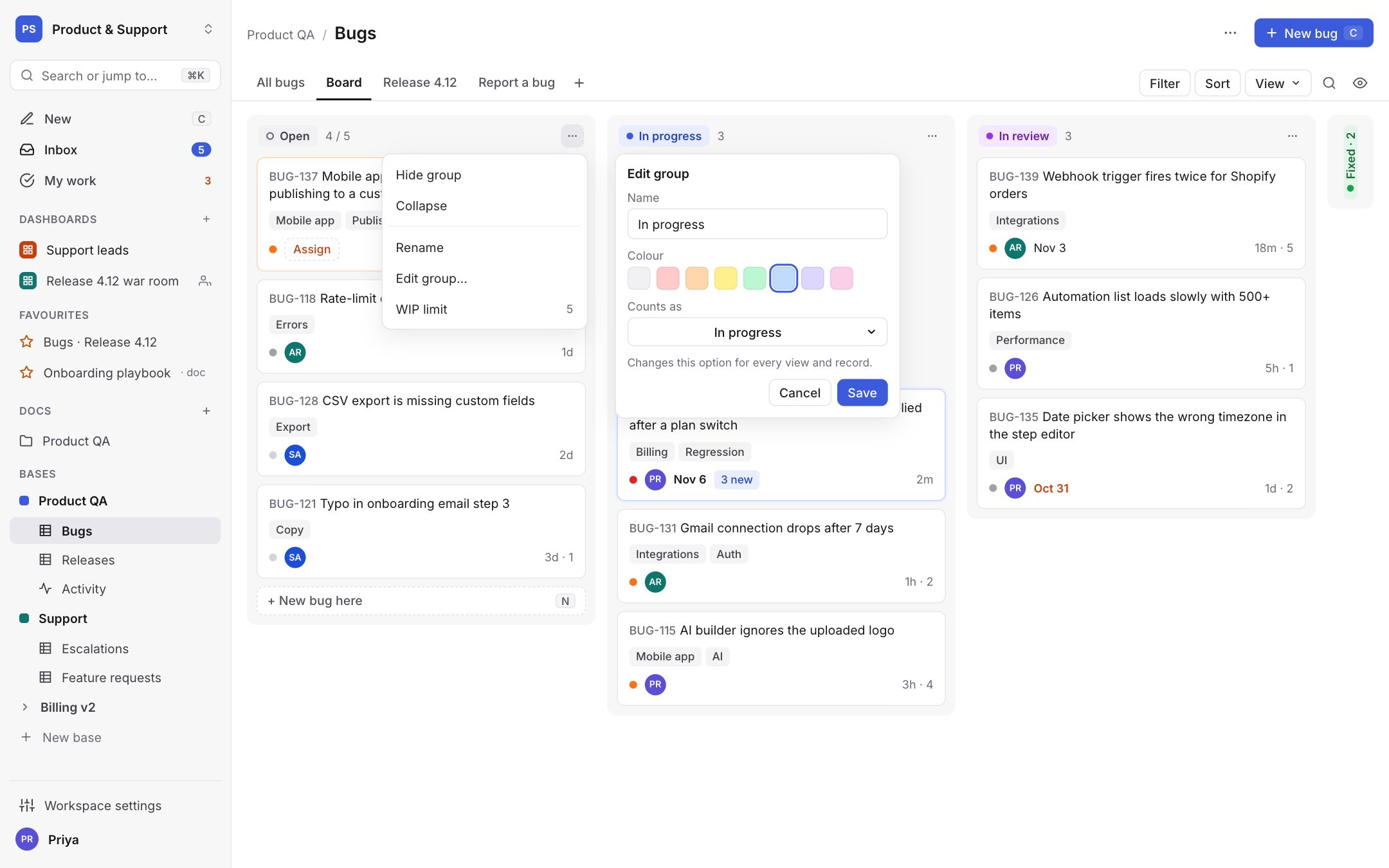
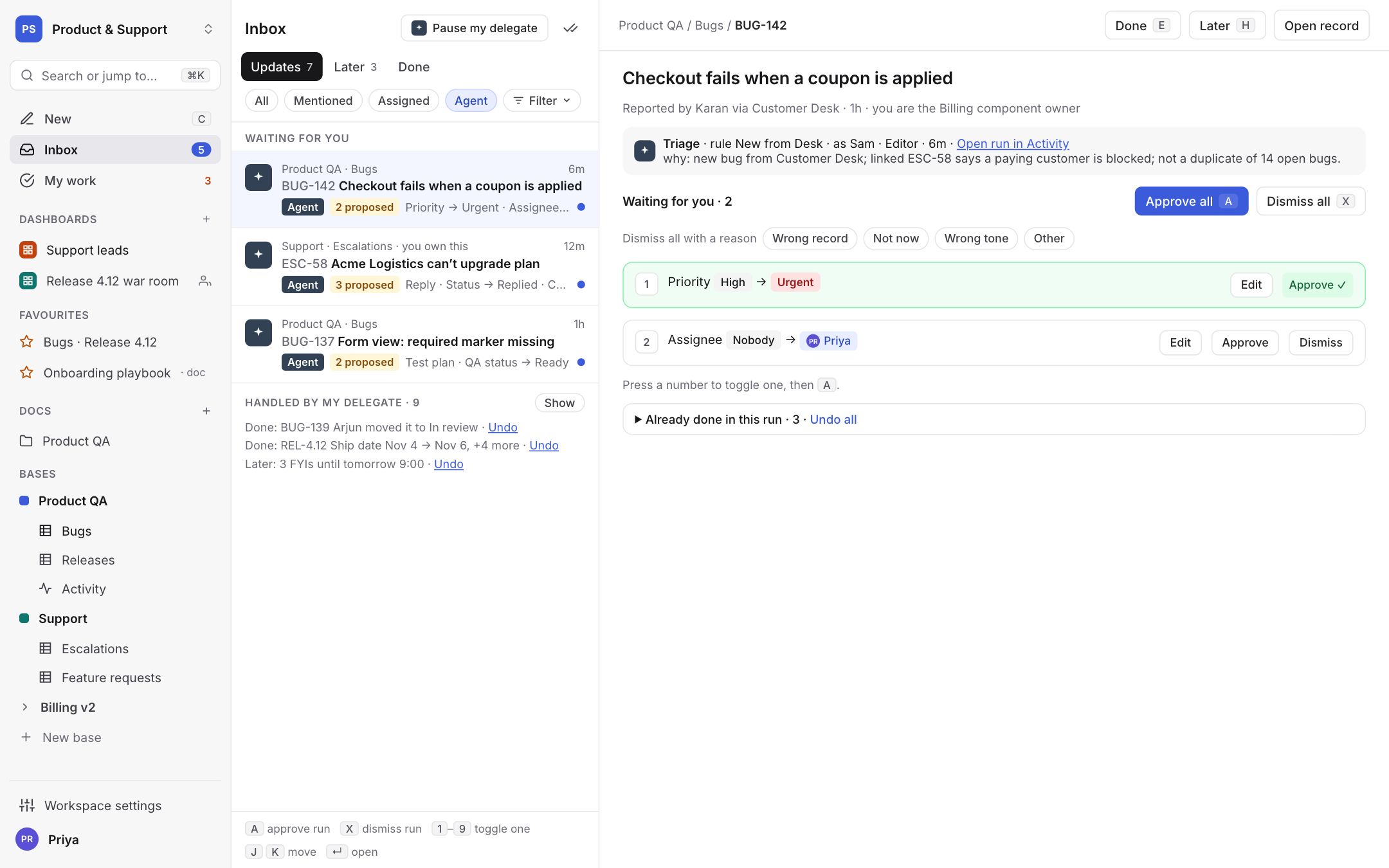
A candidate fills a short form and becomes a card, CV attached, role linked. The hiring manager drags it to Interview. An agent sees it arrive with no next step, finds a slot through your calendar app, and proposes the invite in the manager's DoInbox, one row for each record that needs them, not their email: who and when. One a and the invite is created. Salary notes stay in a field the agent can't read.
Build it now
- Make a Private base called Hiring and share it with the hiring team only. In it, a table called Candidates with the prefix
CAND. Open New table - Add the fields: Name (text), Email (text), Role (link to a Roles table), Stage (picklist: Applied, Screen, Interview, Offer, Hired, Declined), Owner (people), CV (attachment), Next step (date), Salary notes (long text). Mark Hired and Declined as done. On Salary notes and Email choose Hide from AI (MCP) in the field's menu.
- Add a Form view asking for Name, Email, Role and CV. Set new submissions to Stage Applied and the recruiter as Owner. Share the link on your careers page.
- Add a Board view grouped by Stage. Show Role, Owner and Next step on the cards.
- Connect your calendar. A company admin installs the calendar app under Settings › Company › Apps & AI; the manager signs in to it under Settings › You › Apps & keys. Open Connections
- Save a view "Needs a slot": Stage is Interview and Next step is empty.
- Make the Scheduler agent. Open DoAgents, the New DoAgent tab, and describe it in Create with AI: "When a candidate enters Needs a slot, find a one-hour slot this week for the Owner, create the invite in the calendar, and set Next step." Turn on Ask you before it changes anything in its Data & permissions, so the manager approves each invite. Open DoAgents
Go further
- Connections. What leaves, and whose sign-in an app step uses.
- Sharing, Private and Open bases. Keep Hiring to the people who should see it.
- Buttons. A Send offer button that fills the letter from the card.